The very easy guide to the Claude Code terminal
That black window looks scary, right? It's really just where you ask your computer for things in writing. Follow the steps below and you'll be done in ten minutes. Both Windows and Mac are covered.
0. What is a terminal?
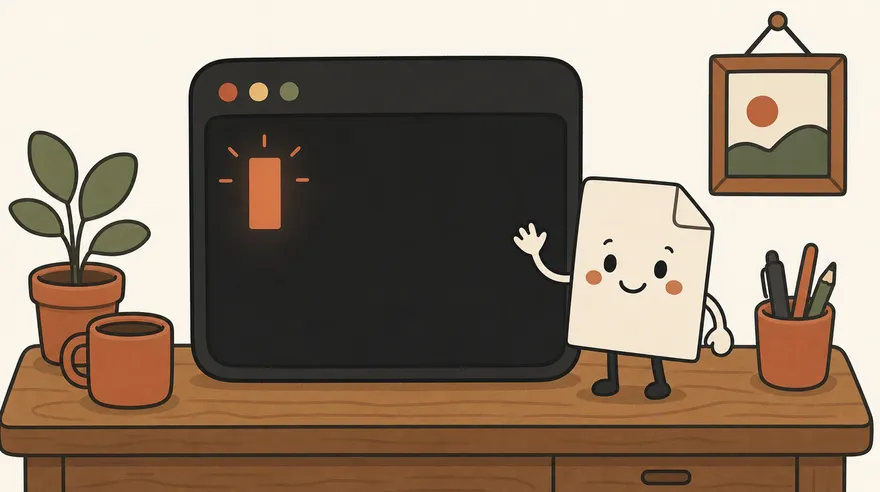
Normally you click an icon to open a program. A terminal is a window where you say it in writing instead. Type one line like "install this for me" and the computer does it. Nothing scary — just a different way of talking.
1. What you need first
- You need a paid Claude plan — Pro, Max, Team or Enterprise. The free plan does not include Claude Code.
- macOS 13 or newer, or Windows 10 or newer. Almost any recent computer works.
- Nothing else to install. Node.js used to be required; it isn't anymore.
2. Mac: open Terminal

Press ⌘ (Command) + Space together. A search box appears in the middle of the screen. Type `terminal` and press Enter — the black window opens.
3. Windows: open PowerShell
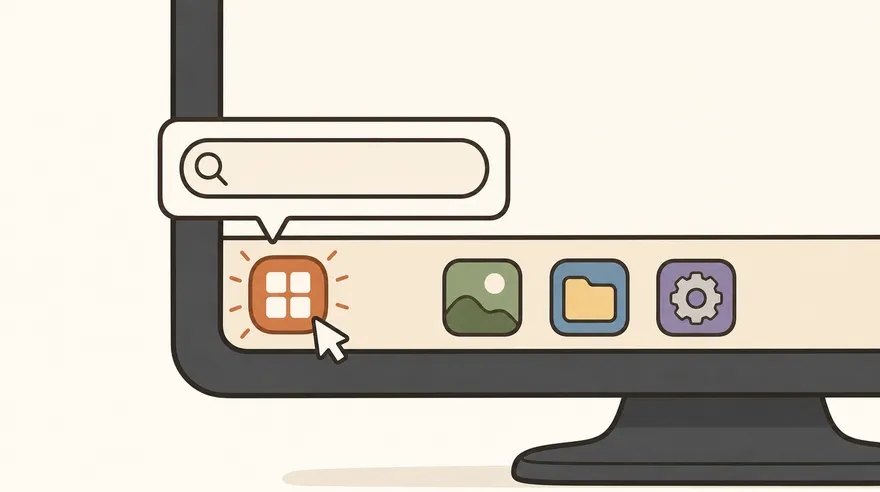
Click the Start button (the window shape) at the bottom left and type `powershell`. Click Windows PowerShell at the top and the blue window opens.
You don't need to run it as Administrator. A normal click is fine.
4. Paste one line to install
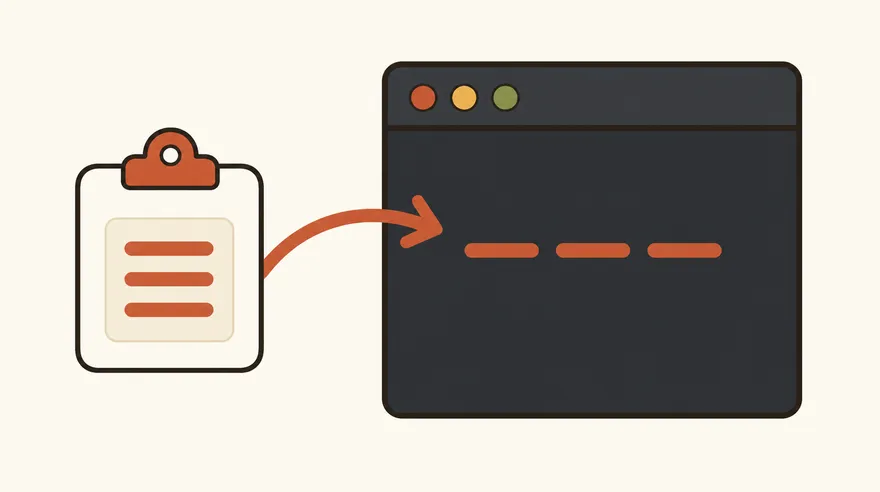
Paste the line below into the window you just opened and press Enter. Use the copy button rather than typing it yourself.
On Mac, use this
curl -fsSL https://claude.ai/install.sh | bashOn Windows PowerShell, use this
irm https://claude.ai/install.ps1 | iexText will stream past. Wait one or two minutes and it's done. Don't close the window while it runs.
5. Check that it worked

Type this and press Enter. If you see a number like `2.1.211 (Claude Code)`, you're done.
5. Check that it worked
claude --versionSeeing `command not found` or "not recognized"? Close the window and open a new one, then try again. That fixes it most of the time.
6. Sign in the first time
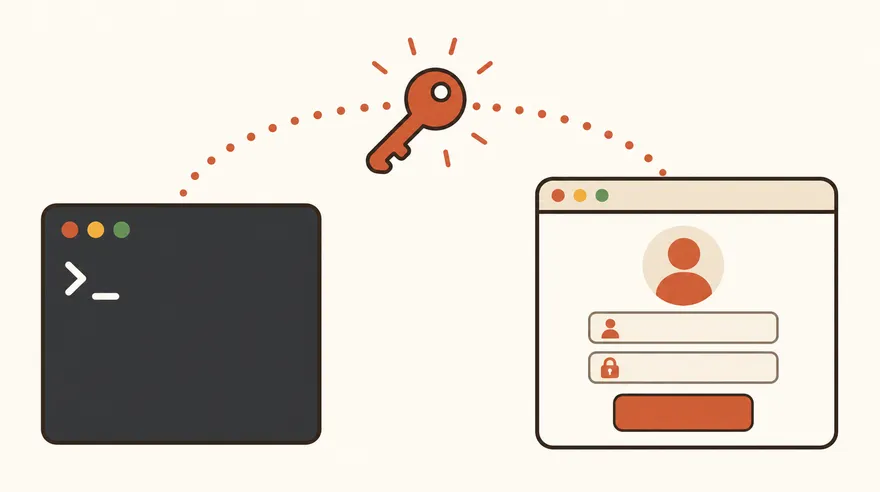
Type just `claude` and press Enter — a browser window opens by itself. Pick your Claude account, approve it, and you're in. You only do this once.
6. Sign in the first time
claude7. Start inside the folder you want to work in
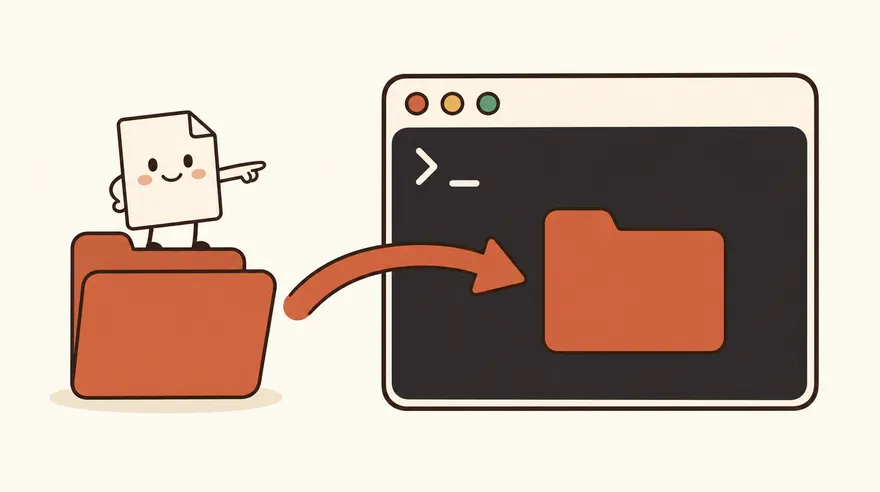
Claude Code reads the files in "the folder you're currently in", so move into your project folder first.
Mac tip: type `cd ` (with one space) and then drag the folder onto the terminal window — the path fills itself in. Press Enter, then type `claude`.
Windows tip: open the folder, click the address bar at the top to copy the path, then paste it after `cd `.
8. Now install a skill

That's the setup done. Pick a skill on Claude Skill Mart, copy its "Let Claude do it" line, and paste it into the `claude` session you just started — it installs the skill for you.
Browse skills →If you get stuck
- Typed a command and nothing happened → check that you pressed Enter.
- `command not found` → close the window, open a new one, and try again.
- The sign-in window doesn't open → open a browser first, then type `claude` again.
- A message about your plan → the free plan won't work; you need Pro or above.
Still stuck? Message the developer below. A screenshot of where it stopped makes it much faster.